
TidyBox Guide

Claiming and access: from open label to full control

Every TidyBox label starts unclaimed: anyone who scans it can add items and edit the list — no account needed. The moment you claim it, you own it and decide exactly who can see and change what.

Watch: claim a collection and share access in one minute

This one-minute video shows how to claim a scanned collection, search across its boxes, and choose who can view or edit them.

1

Unclaimed: open to everyone

A fresh label has no owner. Whoever scans it can photograph the contents, add items, and edit the list. That is perfect for moving day or shared family storage — zero friction, no sign-up.
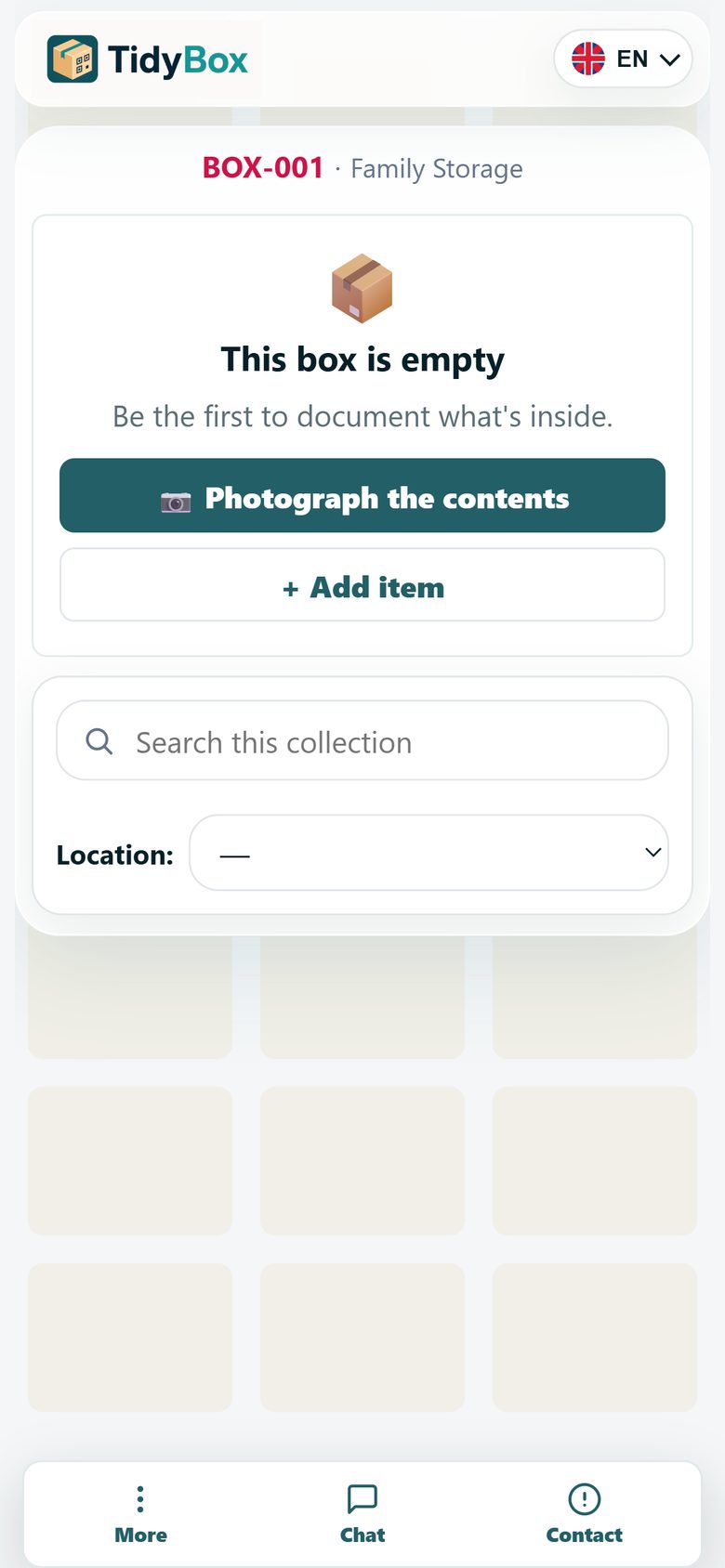
Unclaimed: open to everyone
2

Claim a box — or a whole collection

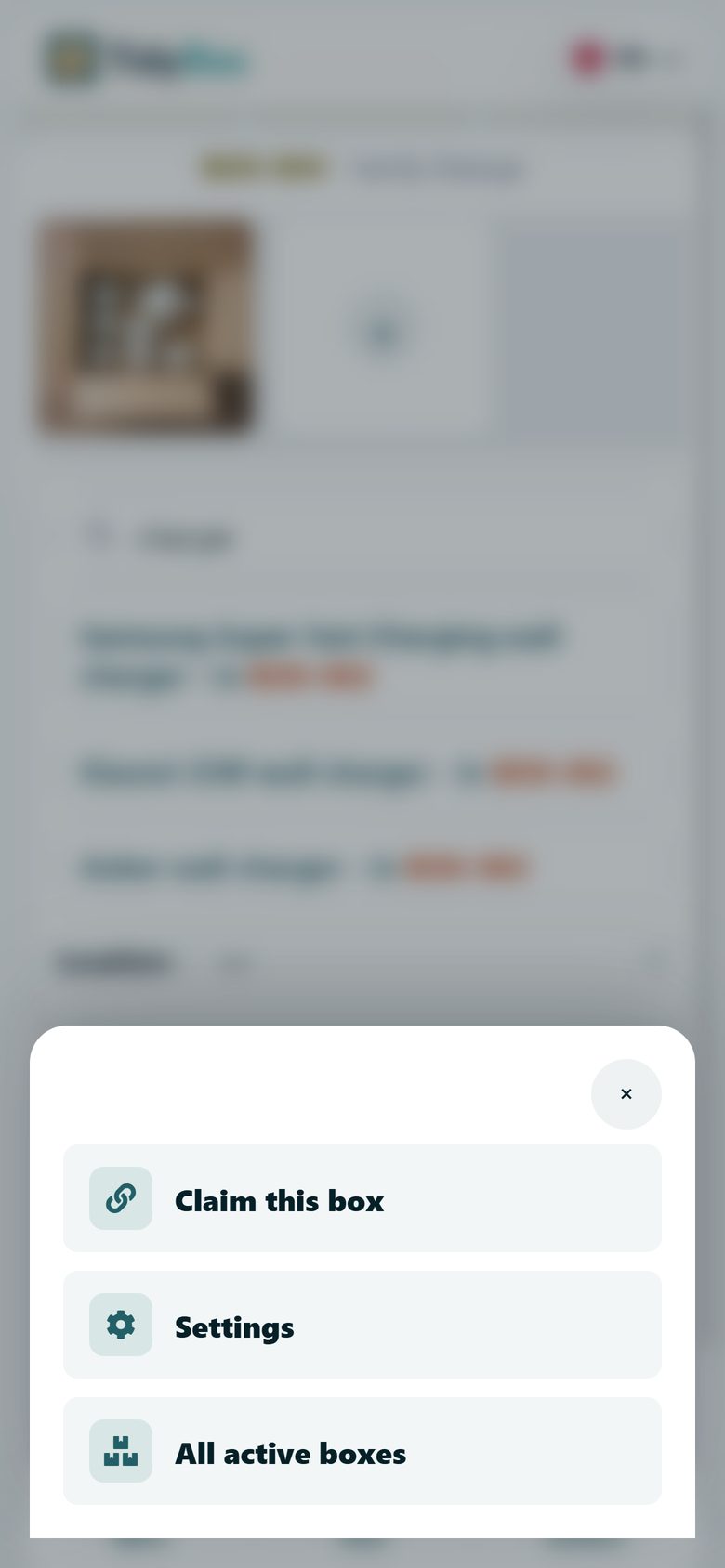
Open the box page and tap More → Claim this box, then sign up or log in. The box is linked to your account. Claiming a box that belongs to a collection links the entire collection to you at once.

Claim a box — or a whole collection
3

Choose who can see and edit

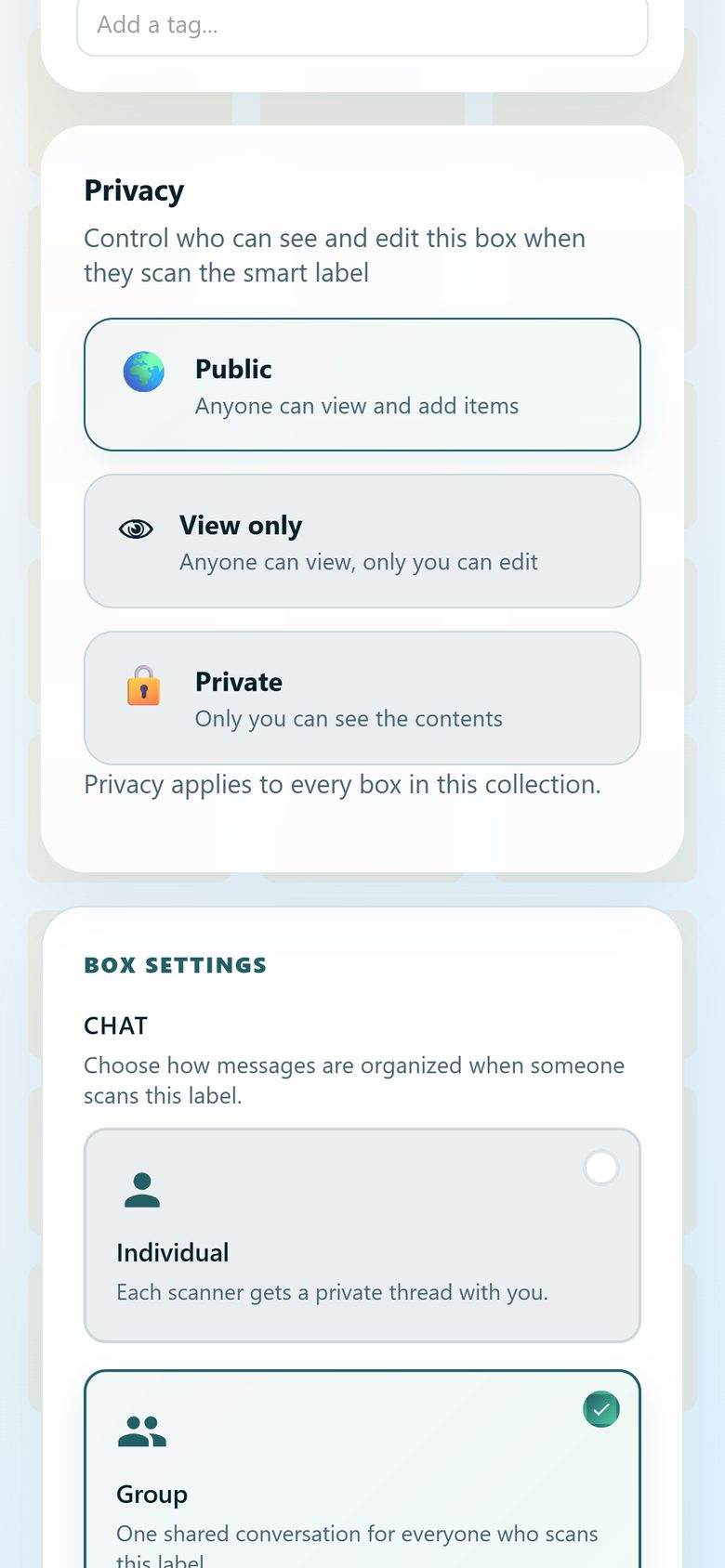
In the smart label settings, pick a privacy mode: Public — anyone can view and add items; View only — anyone can view, only you can edit; Private — only you can see the contents. For collections, privacy applies to every box at once.

Choose who can see and edit
4

Invite people by email

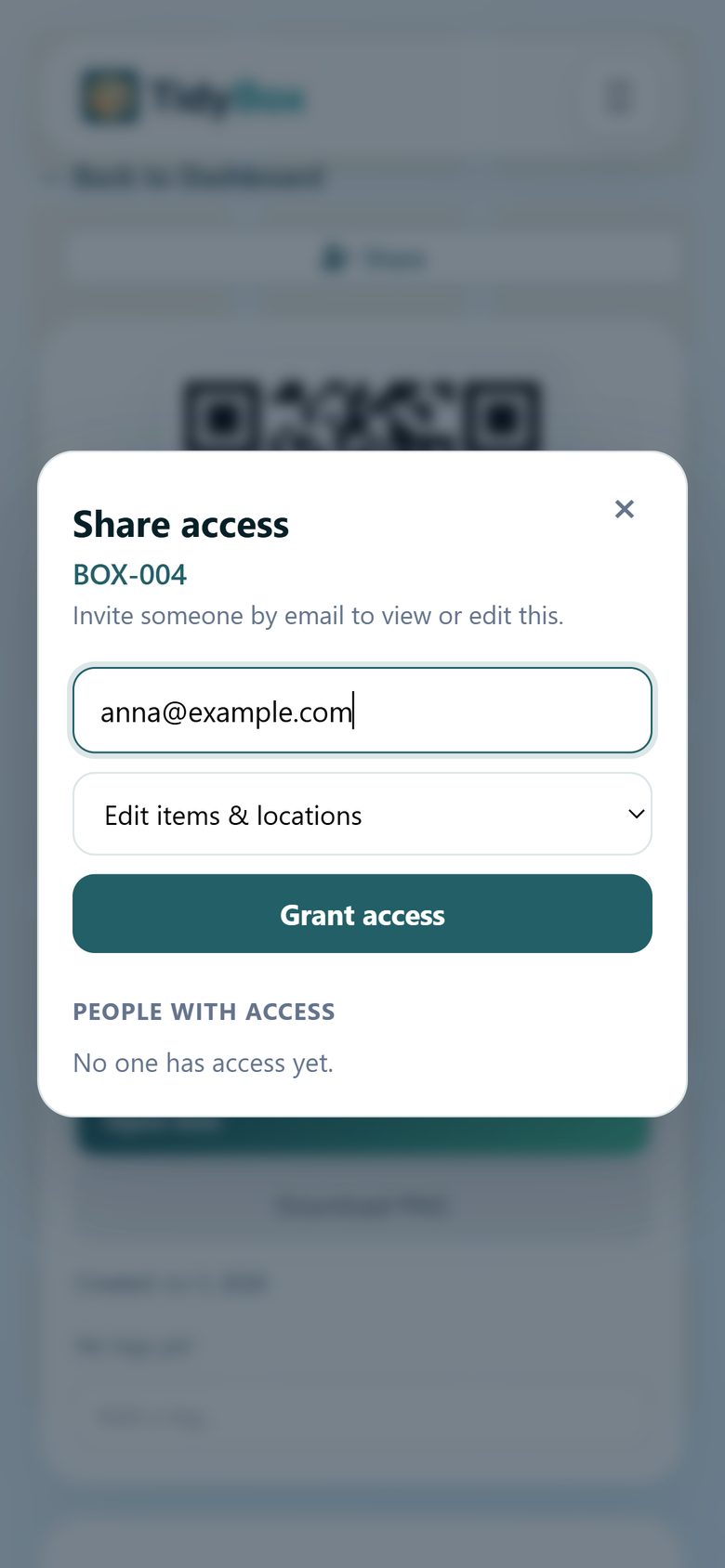
Tap Share and invite someone with View only or Edit items & locations rights. Grants work on a single box, a location, or a whole collection — a collection grant covers all of its boxes.

Invite people by email
5

Stay in control

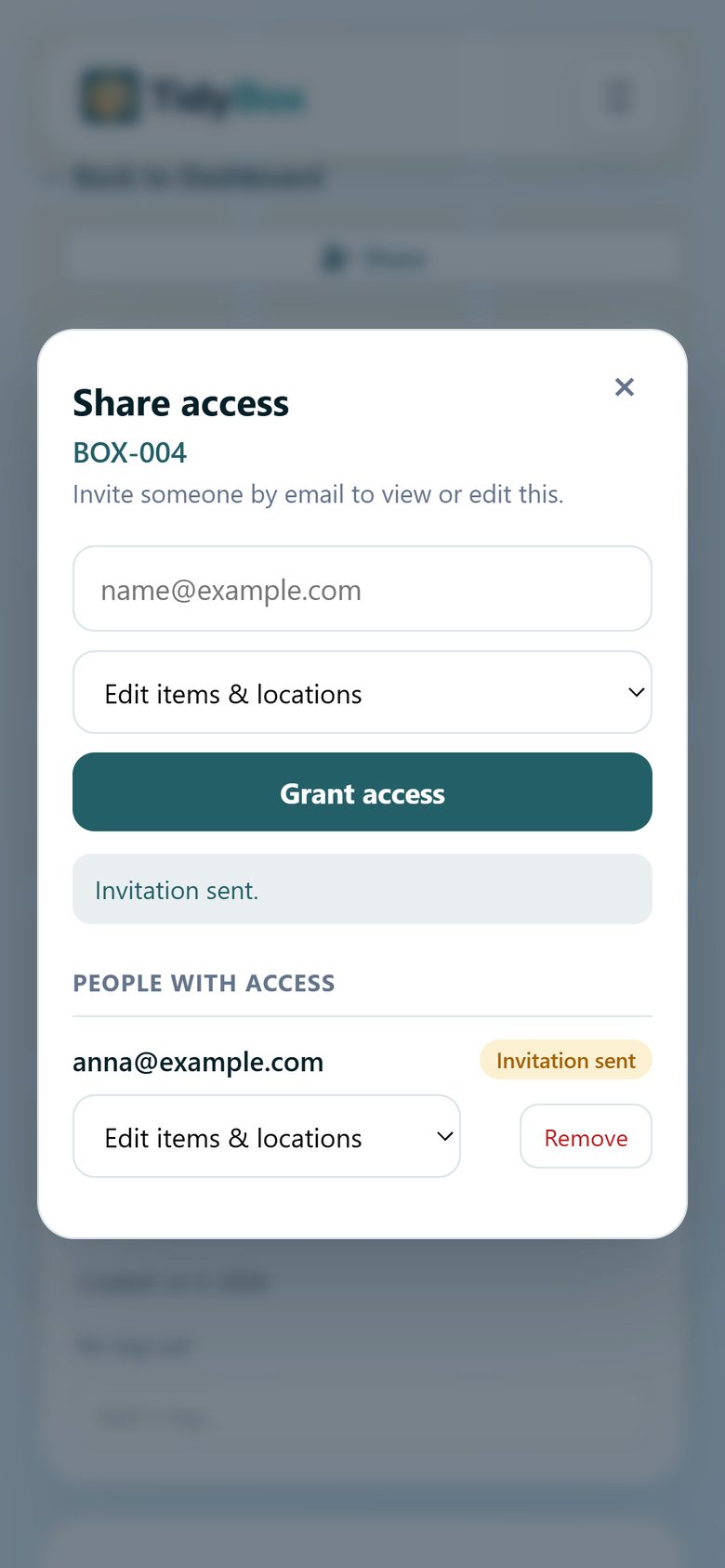
The People with access list shows everyone you invited. Change their access level or remove them at any time. Invited users see the boxes and collections shared with them in their own dashboard.

Stay in control

Ready to organize your storage?

Create your first smart labels free — no app, no setup.

Get started free